
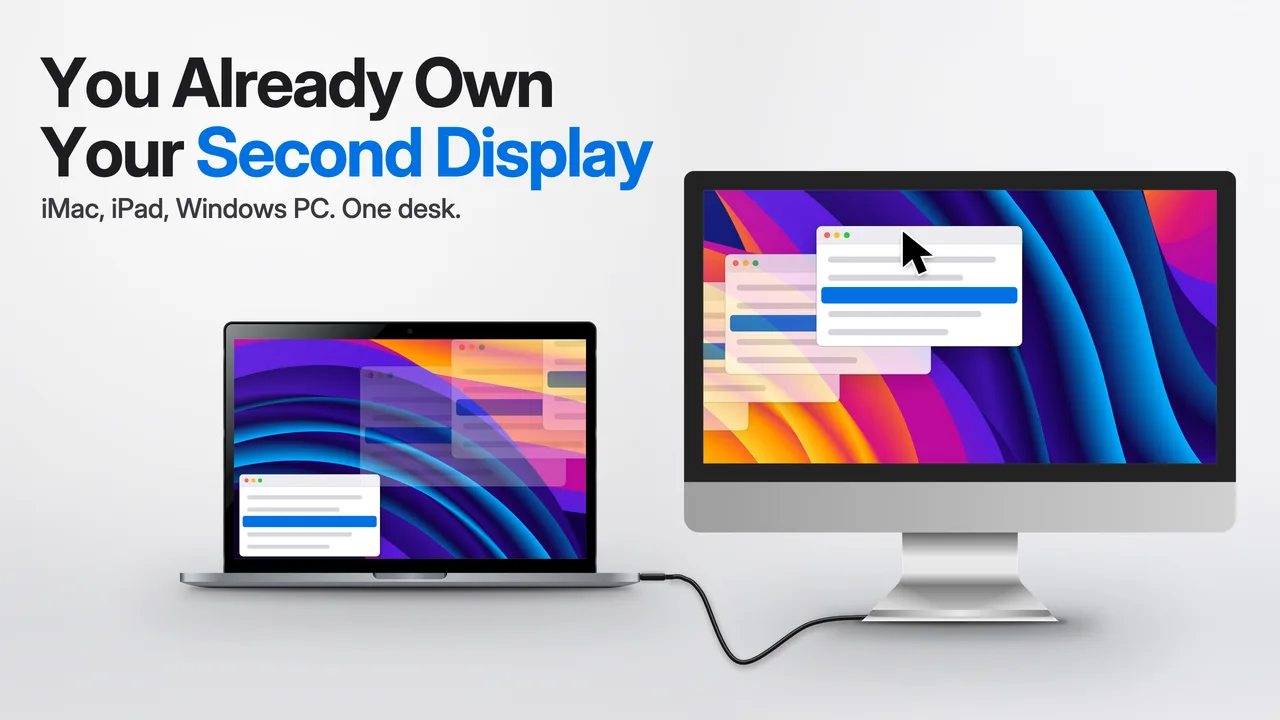
Use your iMac as a monitor for your MacBook or PC.
Connect your iMac to your MacBook or PC with a Thunderbolt cable, and it becomes a second display: lossless, at 60 fps.
Requires macOS 14 or later, or Windows 11, on the computer you work on, and macOS 12.3 or later on the Mac you use as a display. An older iMac that stays below macOS 12.3 but runs Catalina 10.15.7 or later takes the free Second Display Connect instead.
Look closer
Text stays text.
Over a Thunderbolt cable the picture travels without video compression, so small type and hairlines stay as crisp as your Mac drew them. On a 24‑inch iMac that’s 4480 × 2520 pixels, up to 60 times a second.
Thunderbolt vs Wi‑Fi
Second display over Thunderbolt or Wi‑Fi
| What you get | Thunderbolt cable | Wi‑Fi, Ethernet or USB‑C without Thunderbolt |
|---|---|---|
| Picture | No compression, as sharp as on your Mac | Compressed to suit the connection; lossless on Ethernet the speed test finds fast enough |
| Frame rate | 60 frames a secondFootnote 3 | Up to 60 frames a second |
| Delay | About 9 msFootnote 1 | About 29 ms on Wi‑Fi at MediumFootnote 4 |
| Colour | True to your Mac, in the screen’s own colour rangeFootnote 2 | The same colour range |
| Best for | Small text and fast motion | Documents and windows you keep an eye on |
Delay over a Thunderbolt cable
Second Display owners run Check Smoothness on their own iMacs and share the results. Lag and frame rate by iMac model
Wi‑Fi and Ethernet
No Thunderbolt at hand? It still works.
Over Wi‑Fi, Ethernet or a USB‑C cable without Thunderbolt, Second Display compresses the picture to suit the connection: ideal for documents, chats or a reference window. A five-second speed test recommends the quality, and a fast Ethernet link that passes it carries Highest too.
As soon as a Thunderbolt cable is plugged in, the picture moves over to it.
LowFor slow Wi‑Fi. 30 fps. Sharp text on non-Retina iMacs and the 21.5-inch 4K iMac.
MediumFull resolution. The picture sharpens a moment after it stops changing.
HighFull resolution, the sharpest compressed picture, sharper still when it stands still.
HighestLossless, 60 fps, full resolution, on any connection the speed test finds fast enough.
How it works
Set up once. Then forget it’s there.
-
Connect the cable
Plug a Thunderbolt cable into a port with the ⚡︎ symbol on each Mac. No Thunderbolt? A USB‑C cable, Wi‑Fi or Ethernet works too.
-
Open the app on both computers
On the iMac choose “Use this Mac as a display”, on the Mac you work on “This is the Mac I work on”. A Windows PC has no role to pick: its app lists the displays it finds. The two computers find each other on their own, and a five-second speed test sets the quality. On an iMac from late 2012 to mid 2015 there is nothing to choose: open the free Second Display Connect and it waits for your computer.
-
Use it like any display
Drag windows across, go full screen, arrange it in System Settings, or in the display settings of Windows. With Second Display Pro, press ⌃⌥⌘ and an arrow key to send a window to it, or ⌃⇧⌘ and a key to snap it to a half or quarter (Win+Ctrl+Alt and Win+Ctrl+Shift on a PC). Second Display remembers where you put it.
Speakers, microphone and camera
More than a screen.
Second Display also turns your iMac into the speakers, microphone and webcam of your MacBook, Mac mini or Mac Studio, and into the speakers and webcam of a Windows PC. You turn each one on separately.
Speakers
The iMac shows up as a speaker on your Mac. Use the iMac as speakers
Microphone
The iMac’s microphone shows up as an input on your Mac. Use the iMac’s microphone
Camera
The iMac’s camera becomes your Mac’s camera, so a Mac mini or Mac Studio finally has one. Use the iMac’s camera · With a Mac mini
iPad and iPhone
Use an iPad or iPhone as a second display for your Mac or Windows PC.
The free Second Display Touch app shows the desktop of your Mac or Windows PC. Touch the screen to click, draw with Apple Pencil on an iPad, or add a keyboard and a mouse to control your computer from it.
Remote Control
Control your Mac or Windows PC from your iPhone, from anywhere.
The free Second Display Remote app, now in public beta on TestFlight, shows your computer’s screen on your iPhone or iPad, at home or away. You work on it with touch and a keyboard, and its sound and your phone’s camera come along.
Your screen stays between your devices.
The picture travels directly between the Mac or Windows PC you work on and your display, over the cable or your local network, and never passes through our servers. From Second Display Remote it is end-to-end encrypted, so even our relay can’t see it.
Requirements
What you need.
The Mac or Windows PC you work on
- A MacBook Air, MacBook Pro or other Mac with macOS 14 Sonoma or later, or a PC with Windows 11
- A Thunderbolt port, for the lossless picture
- An email address, to start the free trial
The Mac you use as a display
- An iMac from late 2015 or later, or any other Mac, with macOS 12.3 Monterey or later
- An iMac from late 2012 to mid 2015 that runs macOS Catalina 10.15.7 or later, with the free Second Display Connect
- A Thunderbolt port, for the lossless picture
- No account needed
An iPad or iPhone as a display
- An iPad or iPhone with iPadOS or iOS 17 or later
- The free Second Display Touch public beta, with no account needed
- Wi‑Fi on the same network as your computer, or a USB cable to a Mac
No Thunderbolt on one of them? Put both Macs on one Wi‑Fi or Ethernet network and the picture is compressed to match the connection, unless the speed test finds the link fast enough for Highest. A USB‑C cable also works. Everything you need
Turn on Encrypt connections in Settings › Advanced to encrypt the picture, sound, microphone, camera and settings over a cable, Wi‑Fi or Ethernet. Encrypt connections
Pricing
$39 Once
Try it free for 7 days.
The trial starts the first time you sign in, and needs no payment details. Any tax is shown at checkout.
Second Display Pro
Adds tools for the Mac or PC you work on, on top of the second display. Included in the 7 days free. See Pro
- Window snapping, plus a window switcher on a Mac
- Workspaces: window layouts on one shortcut
- Screenshots and screen recording
- The display’s files in Finder
- Picture in Picture
- Keyboard and mouse control
- Sleep and wake together
- Login and lock screens on your displays and in Second Display Remote
- Apple Pencil on an iPad
A Windows PC has its own licence: $59 once, and $39 for each further PC. Pro adds window, screenshot and display-control tools for $59 on a Mac and $79 on a Windows PC. All prices
Questions? Answers.
My iMac doesn’t have Target Display Mode. Can I still use it as a monitor?
Yes. Target Display Mode works only on some iMac models from 2009 to mid 2014 with macOS High Sierra or earlier, and only with a Mac from 2019 or earlier. Second Display makes an iMac a monitor without it. An iMac from the late 2015 models on, Apple silicon included, runs Second Display on macOS 12.3 or later. An iMac from late 2012 to mid 2015, which can’t run macOS 12.3, runs the free Second Display Connect on macOS Catalina 10.15.7 or later. The Mac you work on needs macOS 14 or later. Target Display Mode and newer iMacs
Does it work with an Intel iMac?
Yes. Any Mac with macOS 12.3 or later can be the display, with Intel or Apple silicon. Second Display tests the connection between your two Macs and recommends the best quality they can keep up. An Intel iMac from late 2012 to mid 2015 that can’t run macOS 12.3 uses the free Second Display Connect, which needs macOS Catalina 10.15.7 or later. Which iMacs can be a display
Can a MacBook be the display?
Yes. Any Mac with macOS 12.3 or later can be the display, a MacBook Air or MacBook Pro from early 2015 on too. An Intel MacBook that stops below macOS 12.3 but runs Catalina 10.15.7 or later shows the picture with Second Display Connect. Use a MacBook or another Mac as a display
Can I use my iPad or iPhone as a second display?
Yes, the free Second Display Touch app, available as a public beta on TestFlight, turns either into a second display for your Mac or Windows PC, with no account or licence on the iPad or iPhone. It connects over Wi‑Fi, or over a USB cable to a Mac, and the computer you work on runs Second Display. Use an iPad or iPhone as a display
Can I control my Mac remotely from my iPhone or iPad?
Second Display Remote, a free iPhone and iPad app in public beta on TestFlight, shows a Mac running Second Display (macOS 14 or later) and lets you work on it with touch, a trackpad-style pointer and a keyboard, at home or from anywhere. A Windows 11 PC works the same way, and the computer’s own trial or licence covers it, so there is nothing else to buy. Set up Second Display Remote on your iPhone or iPad
Is remote access to my Mac secure?
Remote access with Second Display Remote is secure: only an iPhone or iPad that someone added while sitting at the computer can connect, and what passes between them is end-to-end encrypted, also on the way through our relay. Remote Access stays off until you turn it on, and our servers can’t see the picture, the sound or what you type. Is Second Display Remote secure, and who can connect?
Can an iMac on macOS Catalina be a monitor?
Yes. A free app, Second Display Connect, turns an Intel Mac that can’t run macOS 12.3 but runs Catalina 10.15.7 or later, such as an iMac from late 2012 to mid 2015, into a display for a Mac with macOS 14 or later. It needs no account, and the Mac you work on runs Second Display. The picture comes over a Thunderbolt cable, Wi‑Fi or Ethernet. Second Display Connect
How is it different from AirPlay or Sidecar?
Sidecar makes an iPad a display, and AirPlay shows what another device sends over your network. Second Display makes your iMac an extra display of the Mac you work on, from the late 2012 models on (late 2012 to mid 2015 with Second Display Connect), and its own keyboard and mouse can control that Mac. Over a Thunderbolt cable we measured a lossless picture at 60 fps on an iMac 24‑inch with M1.Footnote 3 AirPlay, Sidecar and Universal Control
Can I use my iMac as a wireless monitor?
Yes. Put both Macs on the same Wi‑Fi network. At Medium, a MacBook Pro with M3 Pro kept an iMac 24‑inch with M1 at its full 4480 × 2520 and about 58 fps, with a median delay of about 29 ms.Footnote 4 Over a Thunderbolt cable the same two Macs show the lossless picture with about 9 ms of delay. Use Wi‑Fi or Ethernet
Does an iMac lag as a second monitor?
Not over a Thunderbolt cable: Second Display owners who tested their iMacs with Check Smoothness from 9 Macs got 60 fps lossless with a median delay of 13 ms, less than one 16.7 ms screen refresh. The quickest, an iMac 24" M3 (2023) with a MacBook Pro 13" M2 (2022), measured 9 ms. Lag test results people shared
Can I use more than one display?
One Mac can drive several displays at once, and several Macs or Windows PCs can show on one iMac or iPad, each on its own full-screen desktop or all side by side. Show several computers on one iMac or iPad
Can I use the iMac as a monitor with my MacBook’s lid closed (clamshell mode)?
With the MacBook’s lid closed, the picture stays on the iMac and your windows move over to it. That is the default (Keep running with the lid closed, in Settings › Pro), which you can turn off with Pro, and macOS needs the MacBook on power with a keyboard and a mouse or trackpad. Sleep, wake and the lock screen
What happens when the trial ends?
Second Display asks you to buy it before it shows a picture again. Your settings stay as they are. How the Second Display free trial works
Can I get a refund?
What is Second Display Pro?
Second Display Pro adds tools to the Mac or Windows PC you work on: window snapping (and on a Mac, a window switcher), workspaces that bring your windows back with one shortcut, screenshots and recordings, the display Mac’s files in Finder (and an iPad’s or iPhone’s in the beta app), picture in picture, your computer’s keyboard and mouse on a display Mac, sleep and wake together, and the login or sign-in screen and lock screen on your displays. Controlling your computer from a display’s own keyboard and mouse is free. Standard, which has the second display itself, is $39 on a Mac and $59 on a PC; Pro costs $59 once for a Mac and $79 for a Windows PC, or $20 as an upgrade from Standard, and the 7-day trial includes it. Buy Second Display
How many Macs does a Second Display licence cover?
A licence covers one Mac you work on, and each further Mac is $19 once, added on your account page. The $19 is never per display: Macs you use as displays are free, in any number, with no licence or account. Licences bought before 22 October 2026 cover up to 3 Macs. Your licence
Does Second Display work on Windows?
Yes, Second Display runs on a Windows 11 PC and shows its picture on a Mac, an iPad or an iPhone. It has its own licence, separate from the Mac one, which does not cover a PC, and its own 7-day free trial. Your licence
All support articles All guides for using an iMac as a monitor Picture quality on an old iMac, by model and cable
Footnotes
- Median time from capture on a MacBook Pro with M3 Pro until the frame is ready on an iMac 24‑inch with M1, joined by a Thunderbolt 4 cable; the picture was 4480 × 2520 at 60 frames per second. Testing conducted by Second Display in October 2026. The display’s own refresh adds up to one more frame. ↩︎
- Mean colour difference (ΔE) of 0.14 on grey test patches and 0.34 on Display P3 colour patches at Highest quality, under the same conditions. A difference of 1 is about the smallest an eye can see. ↩︎
- Highest quality from a MacBook Pro with M3 Pro sending to an iMac 24‑inch with M1 through a Thunderbolt 4 cable (4480 × 2520): 59 to 60 frames per second, with no frame dropped in three 60‑second runs. Testing conducted by Second Display in October 2026. ↩︎
- Median time from capture on a MacBook Pro with M3 Pro until the frame is ready on an iMac 24‑inch with M1, over Wi‑Fi at Medium quality with a full-screen moving picture. Testing conducted by Second Display in October 2026. ↩︎